How to Connect Claude to AxioPlan and Manage Project Plans in Chat
Step-by-step guide to adding AxioPlan as a custom connector in Claude, approving access, and asking Claude about timelines, estimates, costs and staffing, or having it update your plan.
Most questions about a project plan are short: when does it finish, what would it cost at P85, who has nothing assigned. Answering them usually means opening the plan, finding the right screen and doing some arithmetic.
With the AxioPlan connector, you can ask Claude instead. Claude reads your projects directly, answers in plain English, runs what-if schedules, and, if you allow it, makes the changes you ask for: adding tasks, moving dates, assigning people.
This guide walks through the whole setup: copying the connector URL from AxioPlan, adding it to Claude, approving access, and asking your first question. It takes about five minutes, and you only do it once.
Before you start
Check these first. They cover almost every connection that doesn't work.
- An AxioPlan Pro subscription. You can add the connector on the free plan, but until you upgrade Claude's answers will only point you to the upgrade page.
- A Claude account on Free, Pro, Max, Team or Enterprise. The connector works in Claude on the web and in Claude Desktop, and once added it's available in both.
- On Team and Enterprise plans, custom connectors may need to be added by an owner under Organization settings → Connectors. If you don't see Add custom connector, ask your Claude admin.
- The AxioPlan account that holds your projects. Claude sees exactly what that account can see, so sign in with the same account you plan in.
What Claude can do with your projects
The connector gives Claude a set of tools that work on your AxioPlan data. Which of them it may use is up to you: you choose when you approve access in Step 4.
- Read: list your projects, and read tasks, dates, dependencies, progress, epics, roles and the team, including projects others have shared with you.
- Estimate: get P50, P85 and P95 effort and cost from the same PERT model as the Summary screen, broken down by role.
- Simulate: run the resource allocation engine to see when a project would really finish, how busy people are, and which hires would help. Simulations change nothing.
- Change (optional): add, edit and delete tasks, set dependencies and assignees, manage epics, roles and team members, rename projects, move deadlines and create new projects.
- Delete whole projects (optional, off by default): a separate permission, because it can't be undone.
- Changes only ever apply to projects you own. Projects shared with you stay read-only through Claude, just as they are in the app.
Step 1: Copy the connector URL from AxioPlan
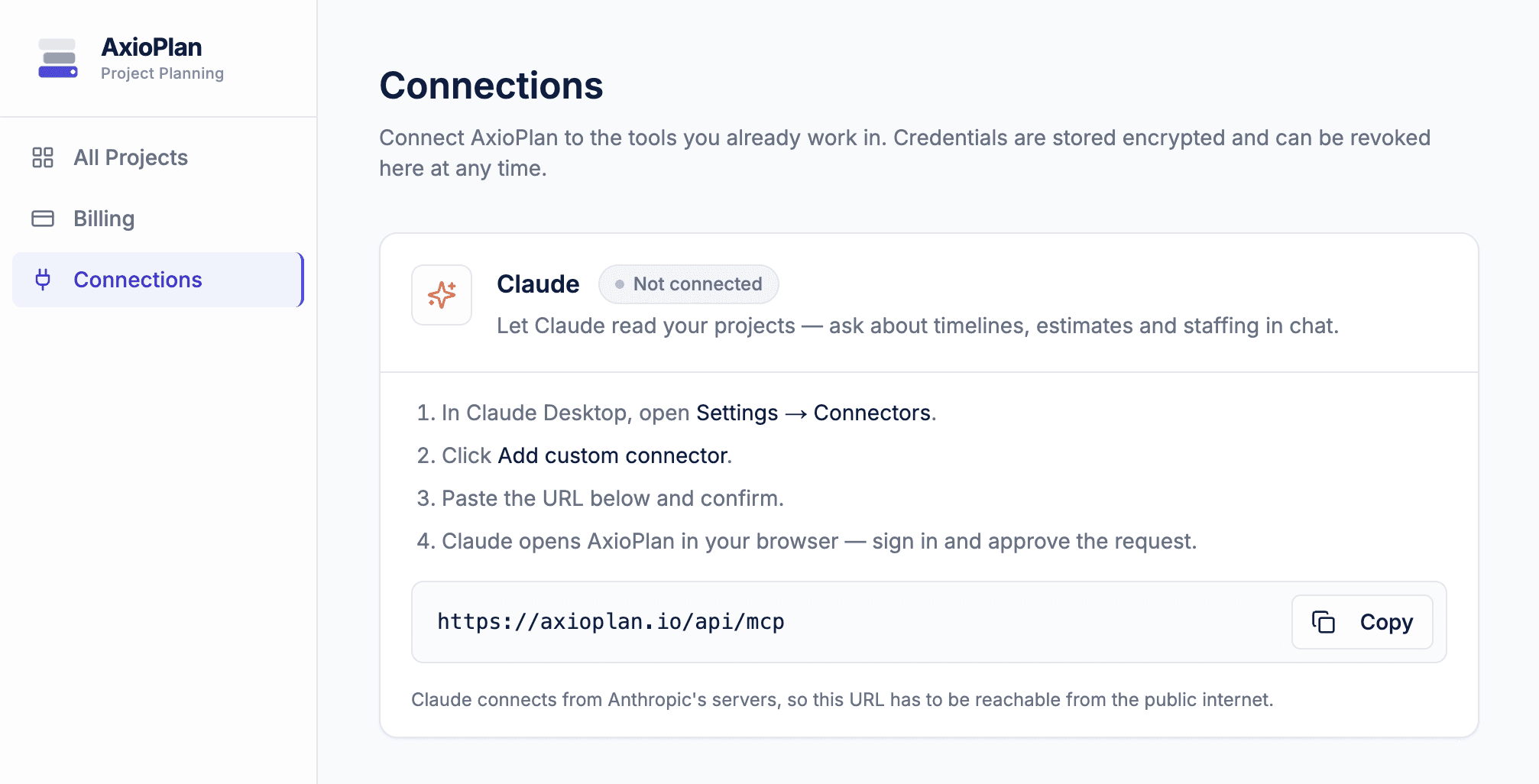
In AxioPlan, click Connections in the left sidebar; it's the plug icon. Find the Claude card, which reads Not connected, and click Copy next to the connector URL.
The URL is the same for everyone and ends in /api/mcp. It isn't a secret: on its own it grants no access to anything. Access comes later, when you sign in and approve the request.
Step 2: Open Connectors in Claude
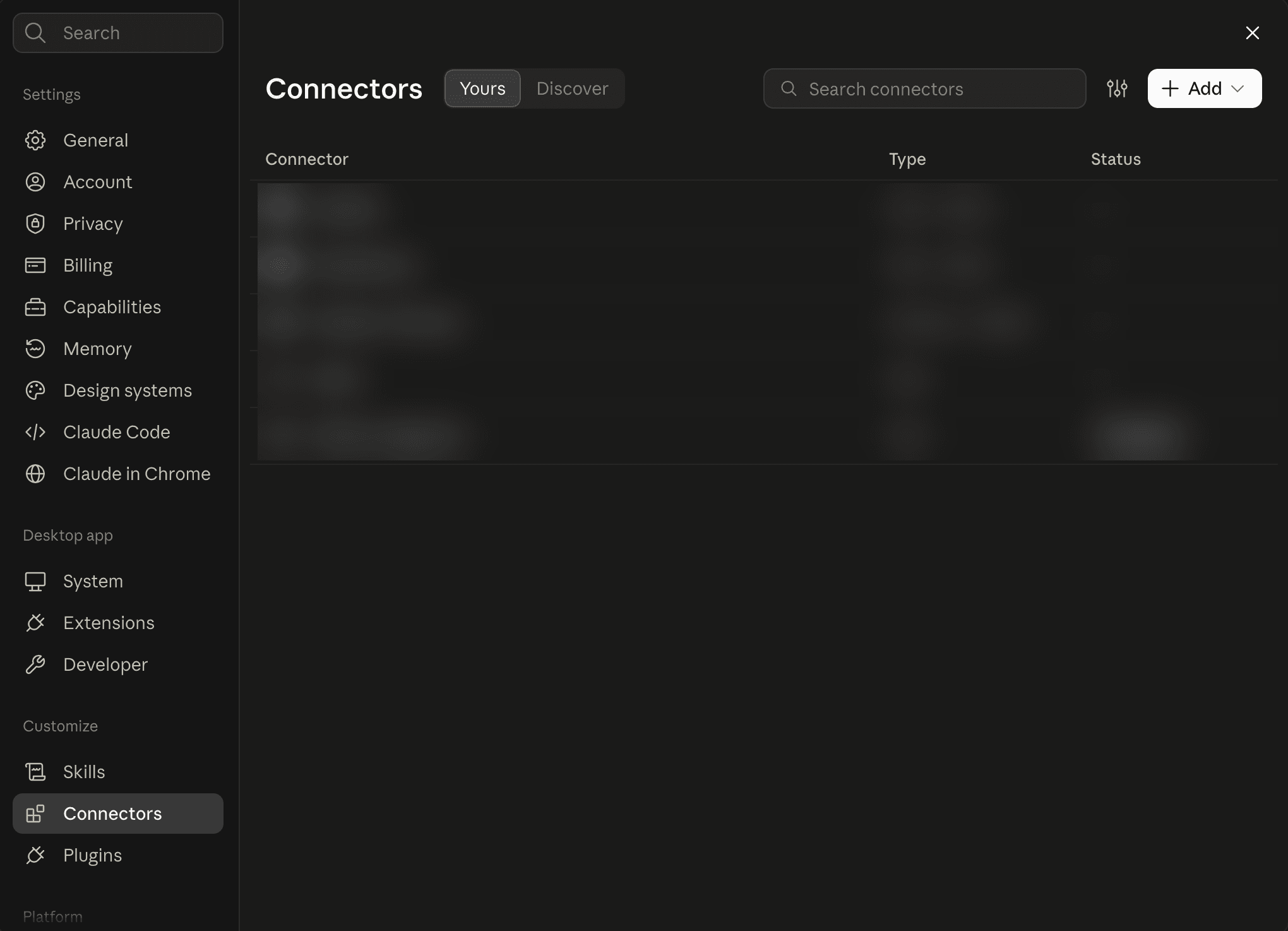
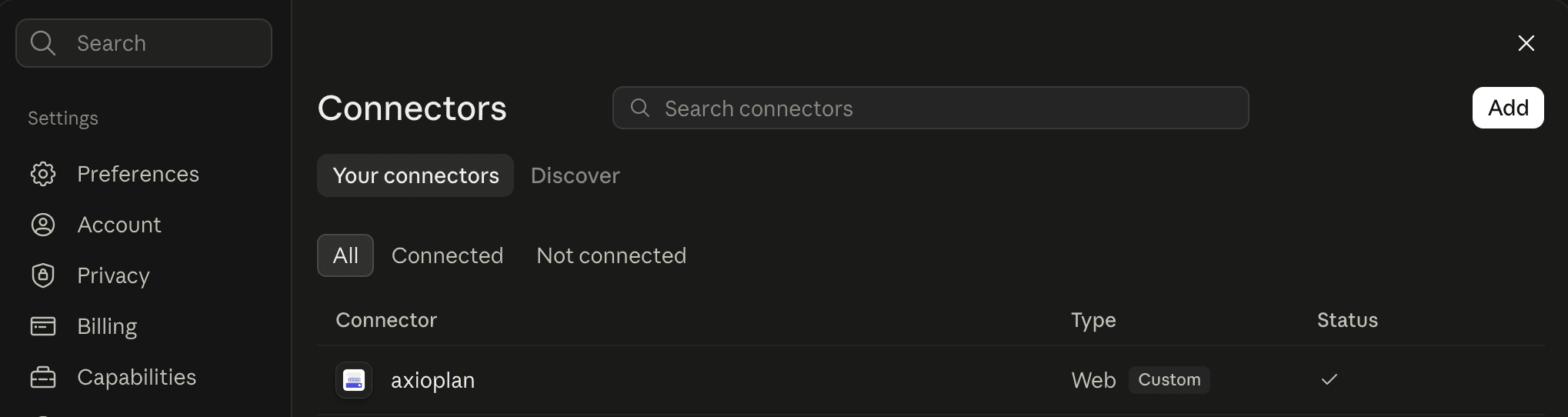
Open Claude on the web at claude.ai, or open Claude Desktop. Click your name or initials in the bottom-left corner, choose Settings, and open the Connectors section.
The page lists the connectors already available to you. Click + Add button.
Step 3: Add AxioPlan as a custom connector
The Add custom connector dialog asks for a name and a URL. Fill them in and click Add.
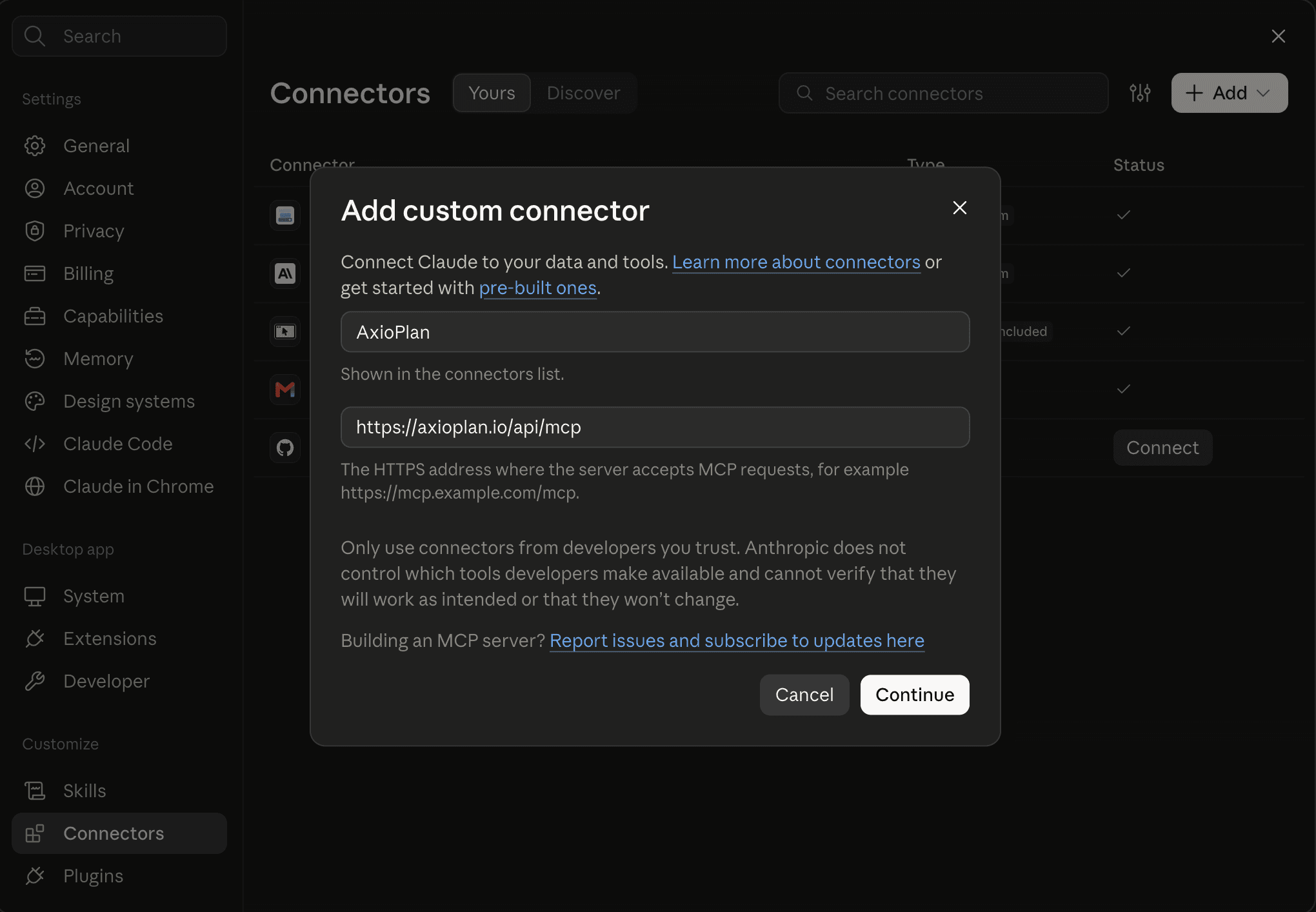
- Name: AxioPlan. This is only a label for you; it's how the connector appears in Claude's menus.
- Remote MCP server URL: paste the URL from Step 1, exactly as copied. Don't add or remove anything at the end.
- Leave Advanced settings empty. AxioPlan registers Claude automatically, so there is no client ID or secret to enter.
Step 4: Sign in to AxioPlan and approve access
After you add the connector, click Connect next to AxioPlan. Claude opens AxioPlan in a browser window. If you aren't signed in, sign in first; you come straight back to the approval screen afterwards.
The screen names the application asking for access and lets you choose what to allow. Tick the permissions you want, check the account you're signed in as at the bottom, and click Allow access.
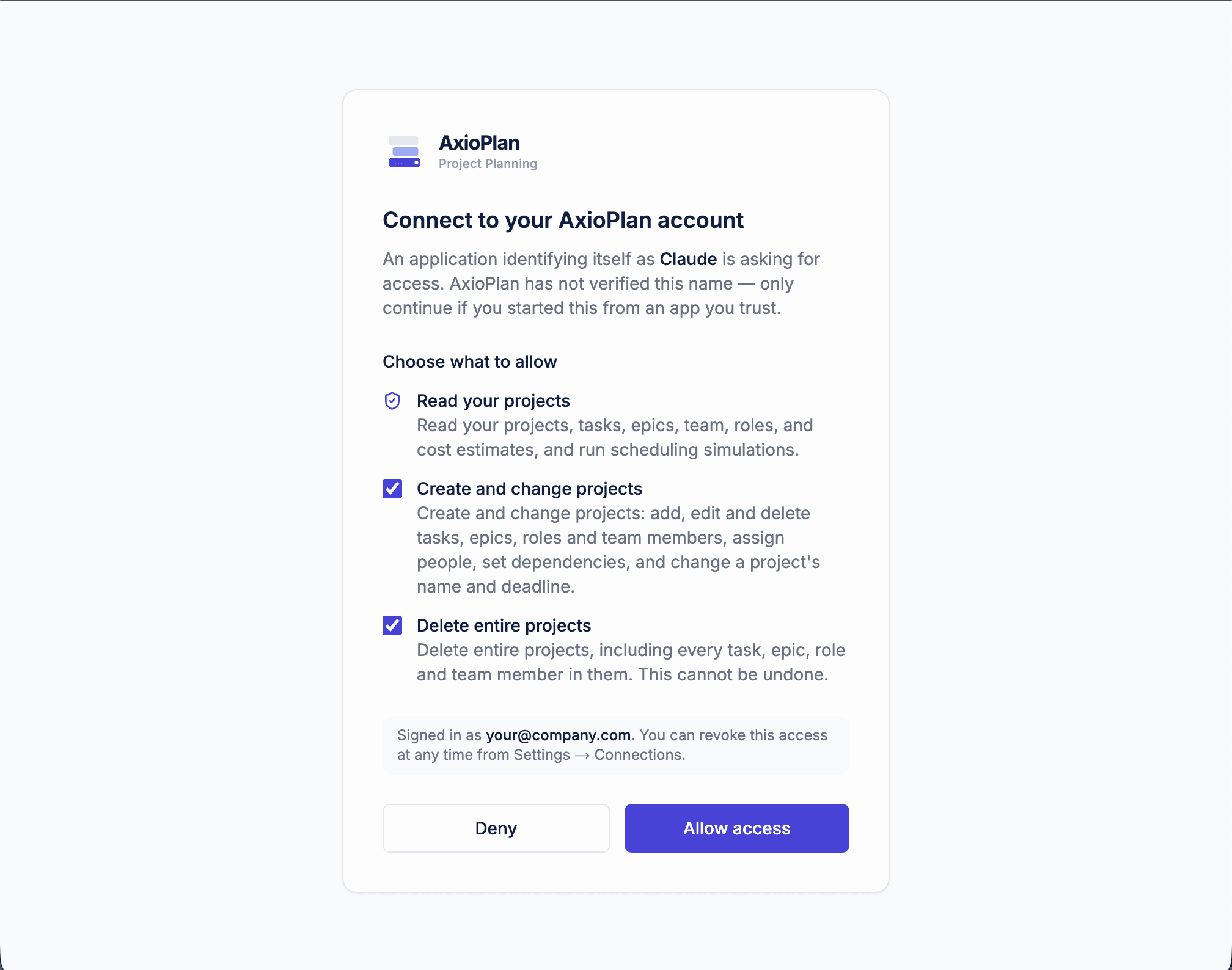
- Read your projects is always included, because nothing else works without it.
- Create and change projects is ticked by default. Untick it if you only want Claude to answer questions.
- Delete entire projects is unticked by default. Leave it that way unless you really want Claude to be able to remove a whole project.
- Permissions are fixed for the life of the connection. To change them later, remove the connector in Claude and add it again.
- Only approve a request you started yourself a moment ago. The application name on this screen is supplied by the application and isn't verified by AxioPlan.
- Your AxioPlan password never passes through Claude. Claude receives only a token limited to the permissions you ticked, which you can revoke at any time.
Step 5: Confirm the connector is connected
After you click Allow access, the browser hands you back to Claude. In Settings → Connectors, AxioPlan now shows as connected.
Open the connector to see the tools it provides. Claude asks for your permission before using a tool, and here you can choose per tool whether it should always ask or be allowed automatically. For tools that change your plan, keeping it on ask is a sensible start.
Step 6: Turn the connector on in a chat
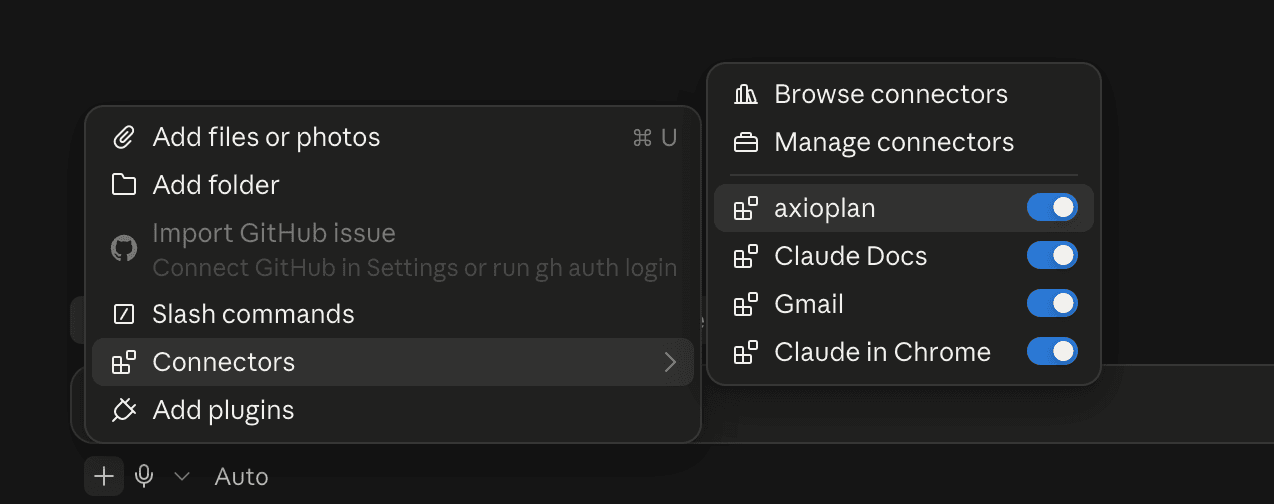
Start a new chat. Click the + button below the message box, open Connectors, and make sure AxioPlan is switched on.
You can switch it off again for chats that have nothing to do with your projects. That keeps Claude from looking in AxioPlan when you don't need it to.
Step 7: Ask your first question
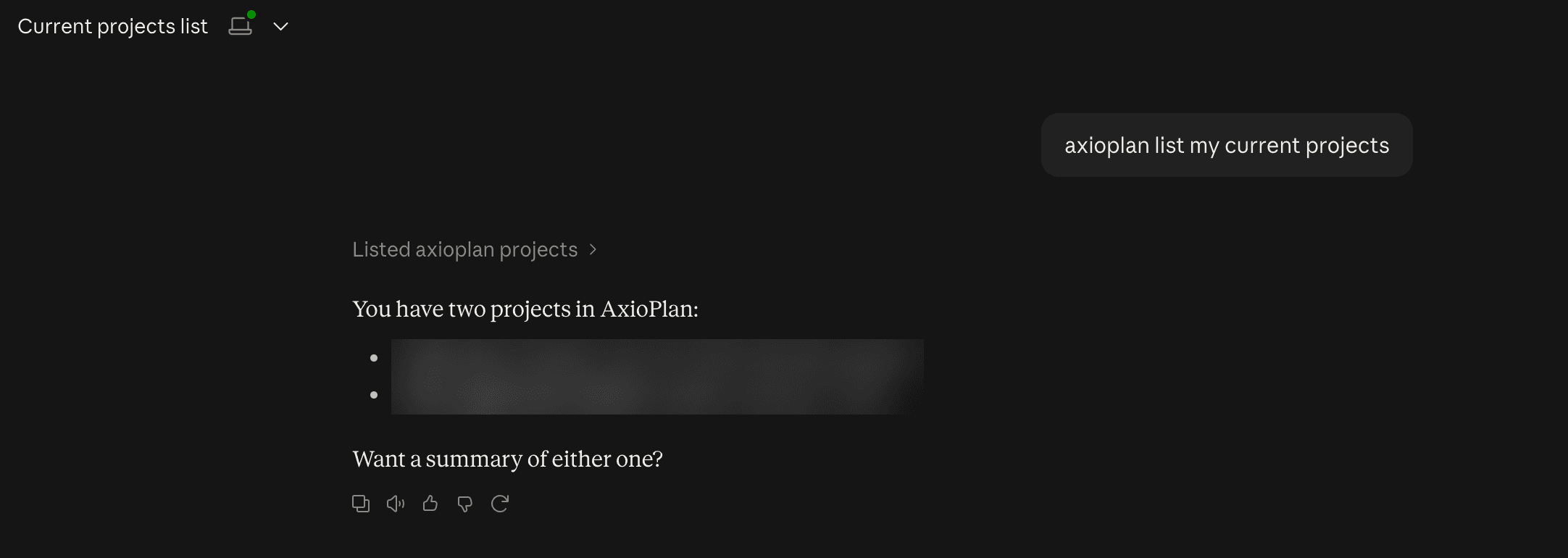
A good first message is "List my AxioPlan projects." Claude doesn't know your projects in advance, so it looks them up first; after that you can refer to any project by name.
When Claude wants to use a tool, it asks you to allow it. Choose Allow once to approve just this call, or Always allow to stop being asked for that tool.
- "What's on the critical path in my Q3 migration project?"
- "What's the P85 estimate for the mobile app rebuild, and what would it cost?"
- "If it can hire as needed, when does the project actually finish?"
- "Which tasks have no one assigned?"
- "Add a two-week hardening phase before launch and put Ana on it."
- "Push everything after the API work out by a week."
Step 8: Check the changes in AxioPlan
When you ask for a change, Claude applies it straight away and tells you what it did: which tasks it added, which dates moved, and anything it couldn't do and why. There is no draft to approve in AxioPlan and no undo, so be specific about what you want.
Open the project in AxioPlan to see the result on the Gantt chart. If you already had the project open, reload it first.
- If you have unsaved edits open in AxioPlan while Claude changes the same project, your next save is refused instead of overwriting Claude's work. AxioPlan tells you the project changed and offers to reload it.
- If Claude says a change isn't allowed, the connection was approved without Create and change projects, or the project belongs to someone else.
Troubleshooting
Most problems come from the plan, the permissions ticked on the approval screen, or signing in with a different account. These are the ones you're most likely to meet.
Claude says the connector needs AxioPlan Pro
The AxioPlan account you approved access for is on the free plan. Upgrade in Billing; the connector starts working as soon as your subscription is active, and you don't need to reconnect.
Claude can read projects but not change them
The connection was approved with read access only, or before editing was available. The Claude card on the AxioPlan Connections page flags such connections. Remove AxioPlan in Claude under Settings → Connectors, add it again, and leave Create and change projects ticked on the approval screen. Changes are also refused on projects shared with you: only their owner can change them.
Claude can't find a project
Ask Claude to list your projects again. If the project still isn't there, you probably approved access while signed in to a different AxioPlan account. Check the account on the Connections page, then remove and re-add the connector while signed in to the right one.
Add custom connector is missing in Claude
On Team and Enterprise plans, adding custom connectors can be limited to owners. Ask your Claude organization owner to add AxioPlan under Organization settings → Connectors; each member then connects it with their own AxioPlan account.
Claude keeps asking you to connect again
The connection was revoked in AxioPlan, or the approval was never finished. Remove the connector in Claude, add it again, and complete Step 4 through to Allow access.
Disconnecting Claude
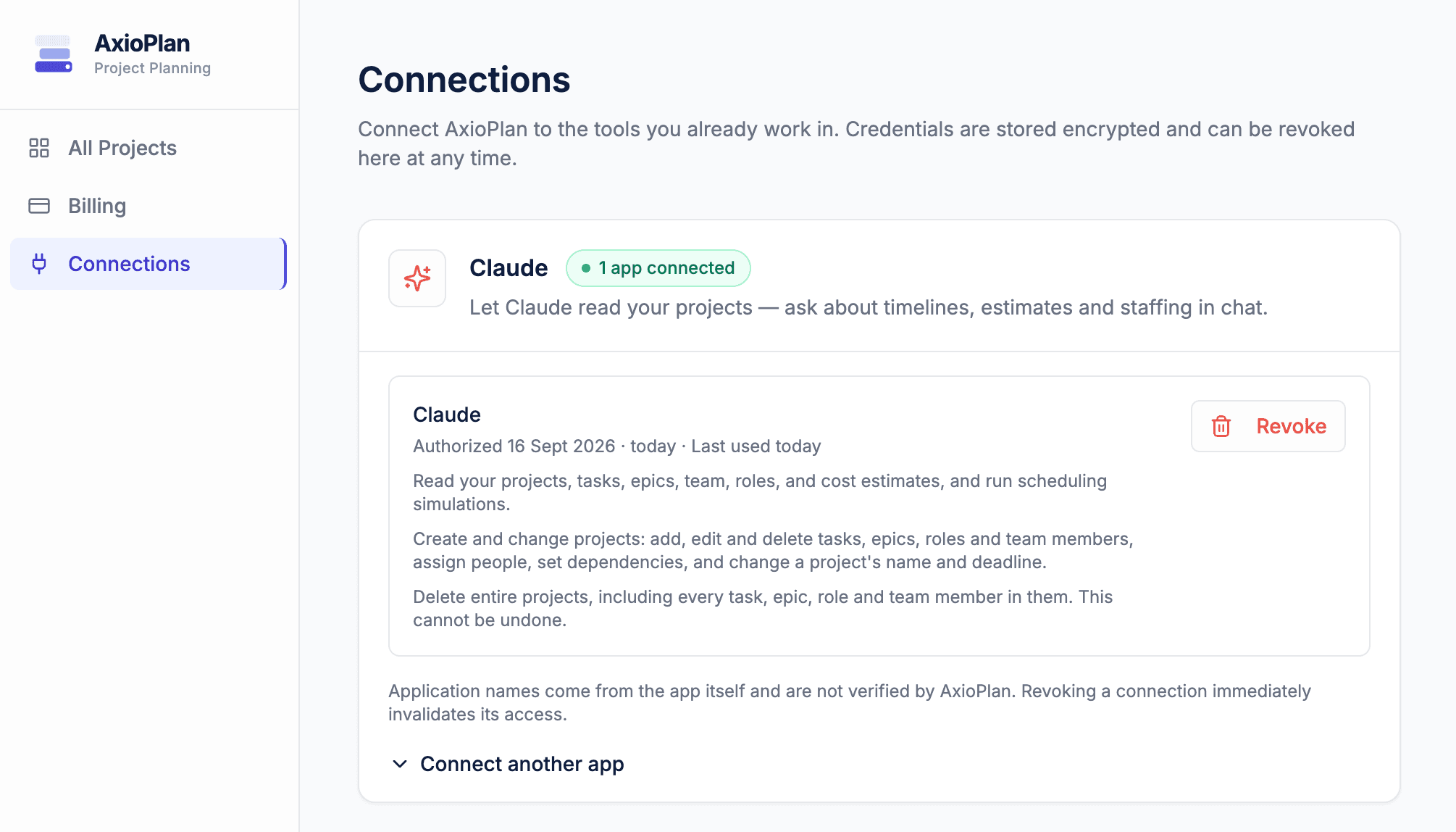
Open Connections in AxioPlan. The Claude card lists every application you have approved, with the permissions it holds and when it was last used. Click Revoke next to the one you want to disconnect and confirm.
Access stops immediately: the next request Claude makes fails, and it would have to be approved again from scratch. You can also remove the connector in Claude under Settings → Connectors so it no longer appears in your chats.
Is it safe to connect Claude to my projects?
Yes. Access is granted through a standard OAuth sign-in, you choose exactly what Claude may do, and Claude sees only the projects your own AxioPlan account can see. Access tokens expire after an hour, are stored only as hashes, and every connection can be revoked from the Connections page.
Keep in mind that changes Claude makes apply immediately and can't be undone from AxioPlan. If you'd rather review everything by hand, approve read access only and ask Claude for suggestions instead of edits. For the full detail, see the Claude connector help page.
Your plan, one question away
Estimates are only useful if people can get answers from them quickly. We looked at why confidence matters more than a single number in AI Project Estimation Is Creating a Confidence Problem in Software Delivery.
With Claude connected, the P85 date, the cost of an extra phase or the effect of one more hire is a question in chat rather than an afternoon in a spreadsheet. And when the plan is ready for the team, you can export it to Jira in one step.
Explore the product on the features page section, compare flat pricing, or log in to plan your next project with the whole team in AxioPlan.